How Do I Fix Display Problems on My Samsung TV?
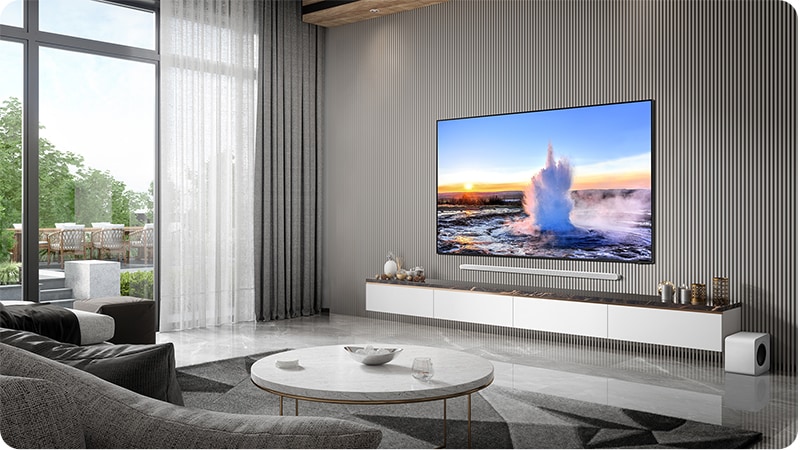
Why is my Samsung TV screen not displaying properly?
If your Samsung TV screen is not displaying properly—such as showing mosaic patterns, horizontal lines, or white dots—follow these steps to identify and resolve the issue quickly and effectively.
1. Check Antenna and Input Cable Connections
Loose or damaged cables are a common cause of display issues. Inspect and ensure all connections are secure:
- Turn off the TV and unplug it from the power outlet.
- Check the HDMI, antenna, or other input cables connected to the TV.
- Ensure the cables are securely plugged into both the TV and the external device (e.g., set-top box, streaming device).
- Replace any damaged or frayed cables.
- Reconnect the TV to the power outlet and turn it on.
2. Identify the Display Issue
Determine the specific display problem to narrow down the cause:
- Mosaic or blocky images often indicate signal interference or a faulty cable.
- Horizontal or vertical lines suggest a connection issue or internal hardware problem.
- White dots or flickering may point to a failing backlight or panel issue.
Try changing the channel using the remote control or switch to a different input source by pressing the Menu button on the remote, selecting Source, and choosing another input.
3. Run a Diagnostic Test
Samsung TVs include built-in diagnostic tools to help identify display issues:
- Press the Home button on the remote control.
- Navigate to Settings > Support > Self Diagnosis.
- Select Run Diagnostics and follow the on-screen instructions.
- If the diagnostic test identifies an issue, follow the recommended steps to resolve it.
Note: If the diagnostic option is greyed out, ensure no apps are running in the background. Exit any active apps before retrying.
Additional Things to Check
Consider these additional troubleshooting steps:
- Ensure the external device (e.g., cable box, gaming console) is functioning correctly and properly connected.
- Restart the TV and external devices to reset their connections.
- Update the TV's software to the latest version via Settings > Support > Software Update.
- Test the TV with a different external device or input source to rule out issues with the connected equipment.
Supported Samsung TV Models
These troubleshooting steps apply to most Samsung TV models, including:
- QLED TVs (e.g., Q60A, Q70B, Q80C)
- Neo QLED TVs (e.g., QN90B, QN95C)
- Crystal UHD TVs (e.g., AU8000, AU9000)
- Frame and Serif TVs
Why the Issue Happens
Display issues on Samsung TVs can stem from several causes:
- Loose or damaged cables disrupting the video signal.
- Signal interference from nearby electronic devices or poor antenna placement.
- Outdated TV software causing compatibility issues with external devices.
- Internal hardware problems such as a failing backlight or panel.
When Updates May Not Appear
If your TV does not display software update notifications, ensure:
- The TV is connected to a stable Wi-Fi network.
- The TV's clock is set correctly under Settings > General > System > Time Zone.
- The TV is set to receive automatic updates under Settings > Support > Software Update > Auto Update.
Related Samsung Support Topics
Thank you for your feedback!
Please answer all questions.