How to Set Up Universal Remote on a Samsung TV
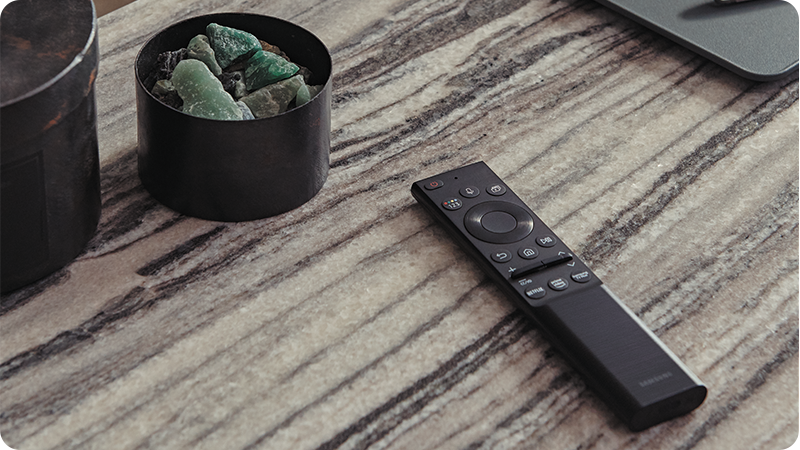
How to Set Up a Universal Remote for Samsung Connected Devices
Setting up a universal remote for your Samsung TV or projector simplifies controlling multiple devices with a single remote. This guide covers setup steps, compatibility considerations, and troubleshooting for common issues like signal interference and device recognition.
1. How to Set Up a Universal Remote for Samsung Devices
Follow these steps to configure your universal remote for Samsung TVs, projectors, or other compatible devices:
-
Turn on the device you want to control (e.g., TV, soundbar, or streaming box).
-
Ensure the device is placed near the TV or projector to facilitate proper signal transmission.
-
Point the universal remote toward the device and press the power button on the remote.
-
Press and hold the "Setup" or "Learn" button on the remote until the indicator light blinks.
-
Enter the manufacturer code for the device using the remote's number pad. Refer to the remote's manual for codes if needed.
-
Test the remote by pressing the power button again. If the device turns off, the setup is successful.
2. Why Does My Universal Remote Not Work with My Samsung Device?
If your universal remote fails to control your Samsung device, consider the following factors:
- Device Compatibility: Some Samsung devices may not support universal remote functionality due to hardware limitations.
- Signal Interference: Obstacles between the remote and device can disrupt signal transmission. Ensure a clear line of sight.
- Anynet+ (HDMI-CEC) Limitations: While Anynet+ allows control of connected devices via the TV remote, not all external devices support this feature.
- Incorrect Manufacturer Code: Using the wrong code during setup can prevent the remote from functioning correctly.
3. Additional Things to Check
To ensure optimal performance of your universal remote, verify the following:
-
Check that the remote's batteries are fully charged or replaced.
-
Ensure the device's firmware is updated to the latest version.
-
Test the remote with another compatible device to rule out hardware issues.
-
Adjust the position of connected devices to minimize signal obstructions.
4. Supported Samsung Galaxy and Home Devices
Universal remote functionality is available on select Samsung TVs, projectors, and home entertainment systems. Compatible models include:
- Samsung QLED TVs (2020 and later)
- Samsung MicroLED TVs
- Samsung The Frame TVs
- Samsung Laser Projectors
- Samsung Soundbars (select models)
5. Related Samsung Support Topics
Thank you for your feedback!
Please answer all questions.