Use Maintenance Mode on Samsung TV & Monitor
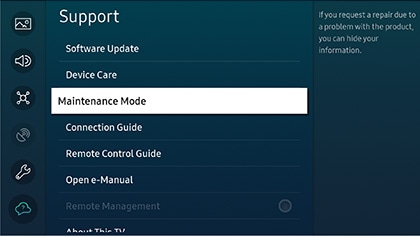
1. How to Activate Maintenance Mode on Samsung TVs and Smart Monitors
Follow these steps to enable Maintenance Mode on your Samsung TV or Smart Monitor:
- Go to Settings > General > Maintenance Mode.
- Select Backup data to save your preferences, such as Picture settings, before proceeding.
- Insert a USB flash drive into a USB port on your device.
- Choose Start to activate Maintenance Mode.
2. Why Use Maintenance Mode?
- Protects your privacy by limiting access to personal data during repairs.
- Allows technicians to perform essential functions without full access to your device.
- Enables backup and restoration of settings like Picture mode, sound preferences, and network configurations.
3. Supported Samsung Devices
Maintenance Mode is available on 2022 and later Samsung TVs and Smart Monitors. Specific models may vary—check your user manual for compatibility details.
4. Additional Things to Check
Before activating Maintenance Mode, ensure:
- Your USB drive has sufficient storage space for backup files.
- The USB drive is formatted correctly (FAT32 recommended).
- You have saved important settings or preferences you want to restore later.
5. When Maintenance Mode May Not Work
- If your device is running an outdated software version, update it first via Settings > Support > Software Update.
- If the USB port is damaged or the drive is not recognized, try another USB port or device.
Thank you for your feedback!
Please answer all questions.