How to use control menu without remote control?
How to Use Control Menu Without Remote Control on Samsung TV
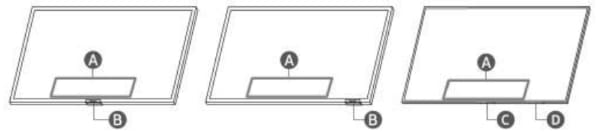
You can use the Control menu on your Samsung TV without a remote control by pressing the TV Controller button located at the bottom of the TV. This feature allows you to navigate and control your TV directly from the panel, making it convenient when your remote is unavailable.
1. How to Access the Control Menu
- Ensure your Samsung TV is powered on.
- Locate the TV Controller button at the bottom of your TV. Its position and design may vary depending on the model.
- Press the TV Controller button to open the Control menu on the screen.
2. Why Is My Screen Dimmed When Using the Control Menu?
If the screen appears dimmed while using the Control menu, it could be due to the protective film covering the SAMSUNG logo or the bottom panel of the TV. Remove the protective film to restore normal brightness.
3. Additional Things to Check
- Ensure the TV Controller button is functioning properly. If it feels unresponsive, gently press it again.
- For Frame Series TVs, note that the remote control sensor at the bottom remains off in Art mode. Switch to regular viewing mode to use the Control menu.
- If the Control menu does not appear, check for obstructions near the TV Controller button or remote control sensor.
4. Supported Samsung TV Models
The Control menu feature is available on most modern Samsung TV models, including the Frame Series, QLED, and Neo QLED TVs. For specific compatibility, refer to your TV's user manual or the Samsung website.
5. Related Samsung Support Topics
Thank you for your feedback!
Please answer all questions.