how to set up q symphony on a 2024 samsung smart tv
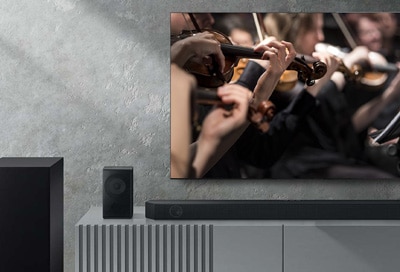
How to Set Up Q-Symphony on a 2024 Samsung Smart TV
Q-Symphony lets you play sound from your Samsung soundbar or Music Frame and your Smart TV speakers simultaneously, creating a richer audio experience. This feature works with compatible Samsung soundbars, Music Frames, and Smart TVs released in 2024 or later. Follow these steps to set up Q-Symphony on your Samsung Smart TV.
1. What Is Q-Symphony?
Q-Symphony is a Samsung audio feature that synchronizes sound from your Smart TV with compatible soundbars or wireless speakers like the Music Frame. Instead of choosing between TV speakers or external audio devices, Q-Symphony plays sound from both at the same time, enhancing your viewing experience.
2. Supported Samsung Devices
Q-Symphony is compatible with the following devices:
- Samsung Smart TVs: Models DU7000 and newer, including 2024 releases.
- Samsung Soundbars: Models supporting Q-Symphony via HDMI, optical, or Wi-Fi.
- Samsung Music Frame: Wireless speakers released in 2024 or later (2023 models require a software update).
3. Why Does Q-Symphony Require a Wi-Fi Connection?
Q-Symphony uses a Wi-Fi connection to sync audio between your Smart TV and wireless devices like the Music Frame. This ensures seamless communication and synchronization between devices. If using a soundbar, you can connect via HDMI, optical, or Wi-Fi, but Wi-Fi is required for Music Frames.
4. How to Set Up Q-Symphony on Your Samsung Smart TV
- Ensure your Samsung Smart TV and soundbar or Music Frame are connected to the same Wi-Fi network.
- Open the SmartThings app on your phone and register your soundbar or Music Frame. Make sure your phone is on the same Wi-Fi network as your TV.
- On your Smart TV, go to Settings > Sound > Sound Output.
- Select Q-Symphony from the list of available options.
- Choose the devices you want to connect (up to two devices, such as one Music Frame and one soundbar).
- Follow the on-screen instructions to complete the setup.
5. Additional Things to Check
- If using a soundbar with HDMI or optical cables, set the soundbar to the D.IN or ARC/eARC source using the remote control.
- Ensure your Samsung TV and soundbar or Music Frame are running the latest software version.
- Avoid enabling screen sharing (screen mirroring) while using Q-Symphony, as it may disrupt the Wi-Fi audio connection.
6. Troubleshooting Q-Symphony Issues
If Q-Symphony isn't working as expected, try the following:
- Restart your Smart TV, soundbar, and Music Frame.
- Check that all devices are connected to the same Wi-Fi network.
- Update your TV and audio devices to the latest firmware.
- Re-register your soundbar or Music Frame in the SmartThings app.
- Ensure your soundbar is set to the correct input source (D.IN or ARC/eARC).
7. Related Samsung Support Topics
Thank you for your feedback!
Please answer all questions.