How to back up TV channels on a Samsung TV using USB
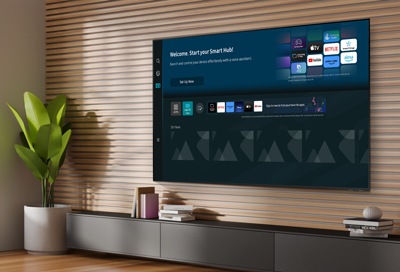
To save your Samsung TV channel list to a USB drive, insert a compatible USB drive into your TV's USB port, navigate to Settings > Broadcasting > Expert Settings, and select Transfer Channel List to USB. This process allows you to back up and transfer your favorite channels easily.
1. How to Save Samsung TV Channels to a USB Drive
- Insert a USB drive into an available USB port on your Samsung TV.
- Press the Home button on your remote and go to Settings.
- Select Broadcasting from the menu.
- Navigate to Expert Settings.
- Choose Transfer Channel List and select Transfer Channel to USB.
- Enter the password (0000) when prompted.
- Wait for the channel list to be saved to the USB drive.
2. Why Save TV Channels to a USB Drive?
- Backing up your channel list ensures you can quickly restore it on another Samsung TV or after a reset.
- Transferring channels to a USB drive is useful when moving to a new TV or sharing preferences with family members.
3. Supported Samsung TV Models
This feature is available on select Samsung TV models, including:
- QLED TVs (2020 and later)
- Neo QLED TVs (2021 and later)
- Frame TVs (2020 and later)
- Crystal UHD TVs (2020 and later)
For compatibility details, refer to your TV's user manual or contact Samsung Support.
4. Additional Things to Check
- Ensure the USB drive is formatted as FAT32 and has sufficient storage space (minimum 64MB).
- Verify that your TV is connected to a stable power source during the transfer process.
- If the feature is unavailable, check for software updates in Settings > Support > Software Update.
5. When the Feature May Not Work
- The USB drive is not compatible or lacks sufficient storage.
- Your TV model does not support the feature.
- The TV is running an outdated software version.
Related Samsung Support Topics
Thank you for your feedback!
Please answer all questions.