How to Use Game Bar on a 2024 Samsung Smart TV
How to Use the Game Bar on Your 2024 Samsung Smart TV
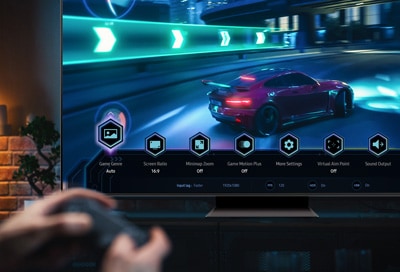
The Game Bar on your 2024 Samsung Smart TV enhances your gaming experience by providing real-time performance metrics and quick access to essential gaming features. Whether you're monitoring input lag, adjusting resolution, or enabling VRR, the Game Bar ensures optimal gameplay conditions for your Samsung Galaxy-connected devices.
1. What Is the Game Bar on Samsung Smart TVs?
The Game Bar is a built-in feature on 2024 Samsung Smart TVs designed to improve gaming performance by displaying critical information such as input lag, resolution, frames per second (FPS), HDR status, and Variable Refresh Rate (VRR). It also allows quick adjustments to screen aspect ratio and access to gaming-specific settings.
2. How to Open the Game Bar
To access the Game Bar, follow these steps:
- Ensure Game Mode is set to ON or AUTO in your TV settings.
- Press and hold the Play/Pause button on your Samsung Smart Remote.
- The Game Bar will appear on-screen with real-time gaming metrics.
3. Key Features of the Game Bar
- Input Lag: Displays the input lag status to ensure responsive gameplay.
- Resolution: Shows the current resolution of the game source.
- FPS: Displays the frames per second in real time. If VRR is active, the frame rate will adjust dynamically.
- HDR: Indicates when an HDR game is running.
- VRR: Shows the active value when FreeSync or VRR is enabled.
Note: If Game Motion Plus is enabled, VRR will be automatically disabled, and vice versa.
4. How to Use Ultrawide GameView on Your Samsung PC
Ultrawide GameView allows you to extend your gaming field of view using a 21:9 or 32:9 aspect ratio. Follow these steps to set it up:
- Set your PC resolution to one of the following:
- For 21:9: 2560 x 1080 or 3840 x 1600 (60 Hz/120 Hz* /144 Hz**).
- For 32:9: 3840 x 1080 (60 Hz/120 Hz* /144 Hz**).
- Once configured, no further adjustments are needed for future use.
Supported Models: 144 Hz is available on QN900D, QN850D, QN800D, S95D, S90D, QN95D, and QN90D (excluding 98-inch models).
Note: 32:9 aspect ratio is only supported for PC games that natively support ultrawide resolution.
5. Adjusting Screen Position
To align the screen with your eye level, use the Channel Up or Down buttons on your Samsung Smart Remote. This feature is particularly useful for optimizing your viewing angle during extended gaming sessions.
6. Troubleshooting Ultrawide GameView Issues
If you encounter problems setting up Ultrawide GameView, try these steps:
- Ensure your PC resolution matches the required specifications.
- Verify that the game supports the selected aspect ratio.
- Use the Game Bar to confirm the screen ratio is correctly applied.
Note: Screen ratio adjustments cannot be made during active gameplay.
7. Minimap Zoom Function
The Minimap Zoom feature enhances your gaming strategy by allowing you to zoom in on specific areas of the map. Supported resolutions include:
- 16:9: 3840 x 2160 (60 Hz/120 Hz).
- 21:9: 3840 x 1600 (60 Hz/120 Hz) or 2560 x 1080 (60 Hz/120 Hz).
- 32:9: 3840 x 1080 (60 Hz/120 Hz).
Note: 21:9 and 32:9 Minimap Zoom are only available when using a PC as the signal source.
8. Virtual Aim Point Feature
Designed for first-person shooter games, the Virtual Aim Point feature displays crosshairs on-screen, helping you aim more accurately during gameplay.
Supported Samsung Smart TV Models
The Game Bar and its associated features are compatible with 2024 Samsung Smart TV models, including the QN900D, QN850D, QN800D, S95D, S90D, QN95D, and QN90D series.
Related Samsung Support Topics
Thank you for your feedback!
Please answer all questions.