How to Use Q-Symphony on a Samsung TV
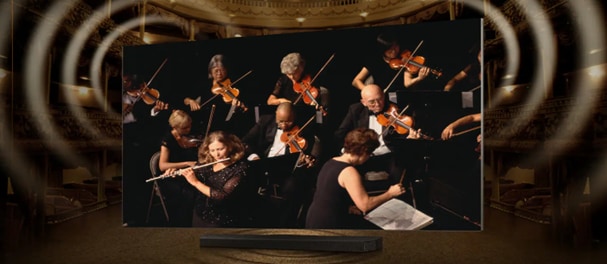
How to Enable Q-Symphony on Samsung TV and Soundbar?
Q-Symphony enhances your TV's sound by synchronizing audio output from both the TV speakers and a connected soundbar, delivering a richer, more immersive listening experience. This feature is ideal for movies, sports, and other dynamic content but requires compatible devices and proper setup.
1. What Is Q-Symphony?
Q-Symphony is a Samsung audio technology that allows your TV and soundbar to work together seamlessly. Instead of replacing the TV's speakers, it combines their output with the soundbar's audio, creating a multi-layered soundstage. This setup is particularly effective for enhancing dialogue clarity, surround effects, and overall audio depth.
- Q-Symphony is best suited for movies, sports, and other content with dynamic audio.
- Certain free-to-air channels may not fully support Q-Symphony due to audio limitations.
- Environmental factors like room acoustics and ceiling height can affect performance.
2. Supported Samsung Devices
Q-Symphony is available on select Samsung TVs and soundbars released between 2020 and 2024. Below is a list of compatible models:
2024 Models:
TVs: QN900D, QN800D, S95D, S90D, QN90D, QN85D, LS03D, Q60D, DU8000, DU7700
Soundbars: Q990D, Q930D, Q800D, Q700D, S800D, S801D, S60D, S61D, LS60D (Music Frame)
2023 Models:
TVs: QN900C, S95C, S90C, QN90C, QN85C, Q70C, Q60C, CU8000, LS03C
Soundbars: Q990C, Q930C, Q800C, Q700C, Q600C
2022 Models:
TVs: QN900B, QN800B, QN95B, QN90B, QN85B, Q80B, Q70B, Q60B, BU8000, LS03B
Soundbars: Q990B, Q930B, Q800B, Q700B, Q600B, S60B, S800B, S801B
2021 Models:
TVs: QN900A, QN800A, QN700A, QN90A, QN85A, Q80A, Q70A, Q60A, AU8000, LS03A
Soundbars: Q950A, Q900A, Q870A, Q700A, Q600A, S60A, S61A
2020 Models:
TVs: Q950T, Q800T, Q95T, Q80T
Soundbars: HW-Q90R, HW-Q800T, HW-Q70T, HW-Q60T
3. How to Set Up Q-Symphony
To enable Q-Symphony, ensure your TV and soundbar are connected via HDMI, optical cable, or Wi-Fi. Follow these steps:
- Connect your soundbar to the TV using an HDMI or optical cable.
- Turn on both devices and ensure they are powered on.
- On your TV, navigate to Settings > Sound > Sound Output.
- Select TV + Soundbar to activate Q-Symphony.
If you encounter issues, ensure the connection is stable and the devices are compatible. Refer to your user manual for additional guidance.
4. Additional Things to Check
If Q-Symphony isn't working as expected, consider the following:
- Verify that both devices are compatible and running the latest firmware.
- Ensure the connection method (HDMI, optical, or Wi-Fi) is properly configured.
- Check for interference in wireless connections, especially in crowded networks.
- Test with different types of content to confirm compatibility with Q-Symphony.
5. Related Samsung Support Topics
Thank you for your feedback!
Please answer all questions.