Knox Matrix Not Responding on Fold6 & Flip6
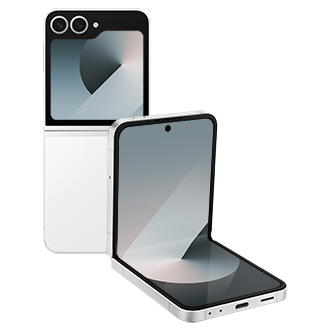
Why is Knox Matrix not responding on my Galaxy Flip6 or Fold6?
The "Knox Matrix isn't responding" error on your Galaxy Flip6 or Fold6 typically occurs due to software conflicts, corrupted encryption keys, or issues with the KmxService app, which manages encryption for Enhanced Data Protection. Follow these steps to resolve the issue and restore secure functionality.
1. Why does the Knox Matrix error happen?
The Knox Matrix error often arises from underlying issues affecting the KmxService app, which handles encryption key management for Samsung's Enhanced Data Protection feature. Common causes include:
- Running unofficial or custom software versions that are incompatible with Knox security protocols.
- Corrupted or missing encryption key data due to interrupted processes or storage errors.
- Conflicts caused by third-party apps interfering with system-level security services.
- Outdated software versions that lack the latest Knox Matrix updates.
2. Supported Samsung Galaxy devices
The Knox Matrix service and Enhanced Data Protection are supported on select Samsung Galaxy devices, including the Galaxy Z Flip6, Galaxy Z Fold6, Galaxy S24 series, and newer models. Ensure your device is eligible for these features by checking the official Samsung support page.
3. How to fix the Knox Matrix error
- Verify software integrity: Ensure your device is running the official Samsung software version. Knox Matrix and Enhanced Data Protection do not work on rooted or custom ROMs.
- Restart your device: A simple restart can resolve temporary glitches affecting the KmxService app.
- Clear KmxService app data: Navigate to Settings > Apps > Sort by > Show system apps, search for "KmxService," tap Storage, and select Clear data. Note: This action deletes encryption key information, so ensure you have your recovery code saved.
- Toggle Enhanced Data Protection: Disable and re-enable the feature via Settings > Biometrics and Security > Enhanced Data Protection. Disabling this feature will remove end-to-end encrypted backups from Samsung Cloud.
- Reset Enhanced Data Protection settings: If the issue persists, reset the feature entirely through Settings > Biometrics and Security > Enhanced Data Protection > Reset.
4. Additional things to check
To prevent recurrence of the Knox Matrix error, consider the following:
- Regularly update your device to the latest software version.
- Avoid installing unauthorized apps that may interfere with system security.
- Ensure sufficient storage space to prevent encryption key corruption.
- Backup your data using Samsung Cloud before performing any data-clearing actions.
5. When updates may not appear
Knox Matrix updates may not appear if your device is on an unsupported software version, lacks internet connectivity, or has disabled automatic updates. Check your device settings and ensure it meets all requirements for receiving updates.
Related Samsung support topics
Thank you for your feedback!
Please answer all questions.