How to Use Screen Write with the S Pen
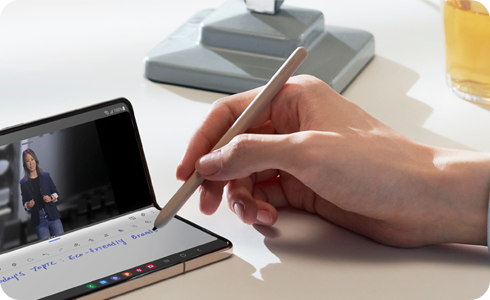
The Screen Write feature on Samsung Galaxy devices allows you to quickly capture a screenshot, then immediately write, draw, or crop the image using the S Pen. This tool is ideal for creating quick notes, highlighting important information, or sharing edited images directly from your phone.
1. How to Use the Screen Write Feature on Samsung Galaxy Devices
Follow these steps to activate and use the Screen Write feature:
- Open the app or screen you want to capture.
- Activate the Air Command panel by pressing and holding the S Pen button and tapping the screen.
- Select Screen Write from the menu.
- The current screen will automatically be captured, and the editing toolbar will appear.
- Use the S Pen to write, draw, or annotate on the screenshot.
- Tap the Save or Share button to save the edited screenshot to your gallery or share it directly.
2. Where to Find Captured Screenshots
All screenshots taken using the Screen Write feature are saved automatically to your device's gallery. You can access them by opening the Gallery app and navigating to the Screenshots folder.
3. Additional Things to Check
- Ensure the S Pen is properly connected and charged. A low battery or disconnection may prevent the Air Command panel from appearing.
- Some apps or screens, such as secure banking apps or full-screen games, may restrict screenshot functionality. In these cases, the Screen Write feature may not work.
- If the Screen Write option is missing from the Air Command panel, ensure that the S Pen settings are correctly configured in your device's settings menu.
4. Supported Samsung Galaxy Devices
The Screen Write feature is available on most Samsung Galaxy devices equipped with an S Pen, including:
- Galaxy Note series (Note 20, Note 20 Ultra, etc.)
- Galaxy S series (S21 Ultra, S22 Ultra, S23 Ultra, S24 Ultra, etc.)
- Galaxy Tab S series (Tab S8, Tab S9, etc.)
5. Related Samsung Support Topics
Thank you for your feedback!
Please answer all questions.