How to Change Navigation Bar Settings on a Galaxy Phone
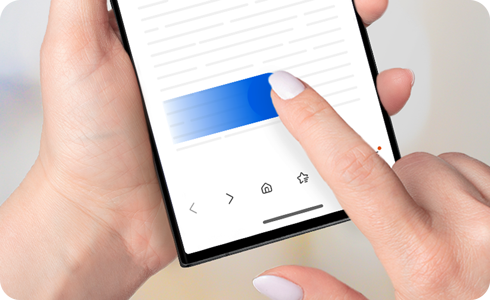
Customize your Samsung Galaxy device's navigation bar to match your preferred navigation style. Whether you want to adjust button order, control gesture sensitivity, or enable features like Circle to Search, follow these steps to optimize your experience.
1. How to Change the Navigation Bar Type on Samsung Galaxy Devices
Samsung Galaxy devices offer multiple navigation options, including traditional buttons, gesture-based navigation, and customizable layouts. Follow these steps to modify your navigation bar settings:
- Open the Settings app on your Samsung Galaxy device.
- Scroll down and tap on Advanced Features or Display, depending on your device model.
- Select Navigation Bar to access navigation settings.
- Choose your preferred navigation style: Buttons, Swipe gestures, or Full-screen gestures.
- To change the button order, tap on More options and select your preferred layout.
- To adjust gesture sensitivity, tap on More options and choose your preferred sensitivity level.
- Enable Block gestures with S Pen to prevent accidental gestures when using the S Pen near the screen edges.
2. How to Activate the Assistant App on Samsung Galaxy Devices
Activate the Assistant app for quick access to digital assistance:
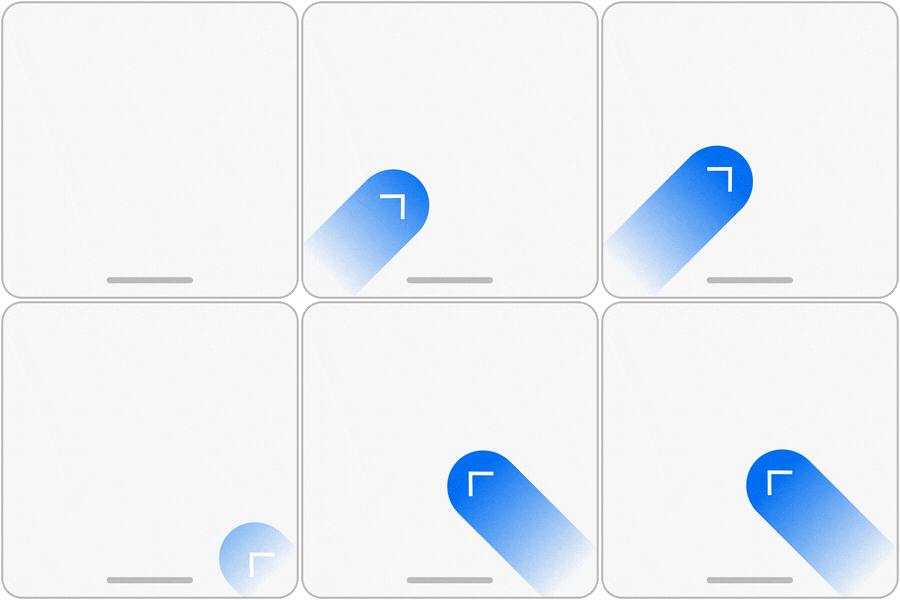
- Swipe inward from the bottom left or right corner of your phone screen.
Note: This feature works regardless of your selected navigation type (Buttons or Swipe gestures).
3. How to Activate Circle to Search on Samsung Galaxy Devices
Enable Circle to Search for quick access to search results:
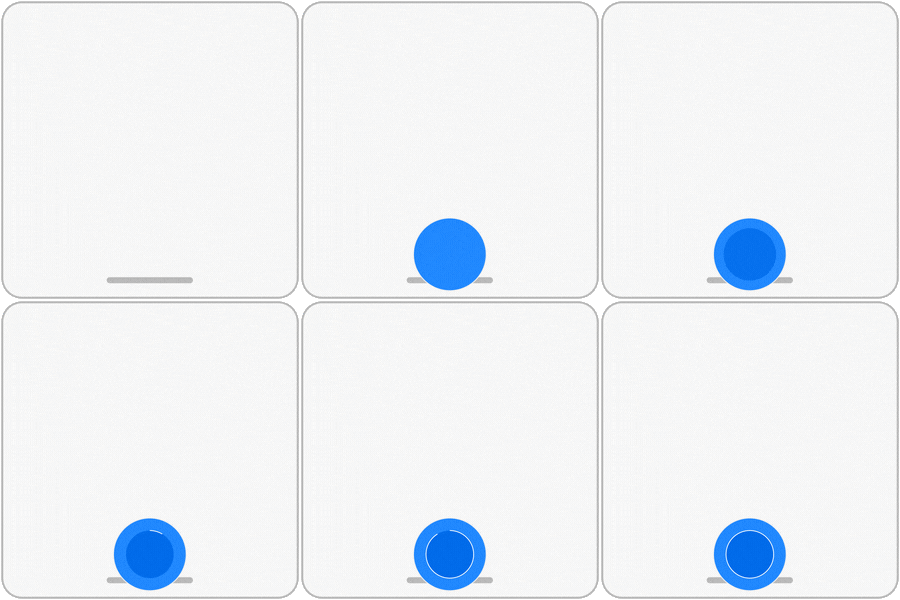
- Touch and hold the Home button or the navigation handle at the bottom of your phone screen.
Note: Ensure your device's software and related apps are updated to the latest version for optimal functionality.
4. Supported Samsung Galaxy Devices
Navigation bar customization options are available on most Samsung Galaxy devices, including:
Galaxy S24, Galaxy S25, Galaxy S26, Galaxy Z Fold, Galaxy Z Flip, and Galaxy A series devices.
5. Additional Things to Check
Ensure your device's software and related apps are updated to the latest version for optimal navigation bar functionality. If you encounter issues, restart your device or reset display settings.
Related Samsung Support Topics
Thank you for your feedback!
Please answer all questions.