How to use Transcribe assist with Galaxy AI
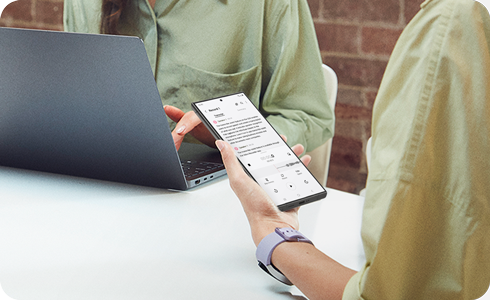
How to use Transcribe Assist with Galaxy AI on Samsung Galaxy devices
Transcribe Assist on Samsung Galaxy devices allows you to record audio and automatically generate accurate text transcriptions, translations, and summaries. This feature is ideal for meetings, lectures, or note-taking and works seamlessly across compatible Galaxy smartphones and tablets.
1. What is Transcribe Assist and how does it work?
Transcribe Assist is a Galaxy AI-powered feature integrated into the Voice Recorder app. It converts spoken language into text, supports translation into multiple languages, and generates concise summaries of long recordings. The feature leverages advanced AI algorithms to ensure high accuracy and contextual understanding.
- The feature supports real-time transcription during recording or post-recording processing.
- It requires a stable internet connection for optimal performance, especially for translation and summarization.
- Transcription accuracy depends on clear speech, proximity to the microphone, and background noise levels.
2. Supported Samsung Galaxy devices
Transcribe Assist is available on select Samsung Galaxy devices running One UI 6.0 or later, including:
Galaxy S24, Galaxy S25, Galaxy S26, Galaxy Z Fold, Galaxy Z Flip, and Galaxy A series (select models).
3. How to use Transcribe Assist
- Open the Voice Recorder app on your Samsung Galaxy device.
- Start a new recording or select an existing one from your library.
- Tap the Transcribe Assist option to begin converting speech to text.
- Review the generated transcription for accuracy and make edits if needed.
4. Translate transcribed text
To translate the transcribed text into another language:
- Go to Settings > Advanced features > Advanced intelligence > Voice Recorder.
- Select your preferred language from the list of supported languages.
- Replay the recording to see the translated text displayed alongside the original transcription.
5. Summarize the text transcript
For long recordings, you can generate a summary to extract key points:
- Ensure you're logged into your Samsung account.
- Select the recorded file and choose the Summarize option.
- Review the generated summary, which highlights essential information.
- Note: Recordings shorter than 1 minute may not be eligible for summarization.
- AI-generated summaries may vary slightly in quality due to contextual interpretation.
6. Additional things to check
- Ensure your device is connected to a stable Wi-Fi network for seamless AI processing.
- Keep your device's software updated to access the latest AI improvements and features.
- Speak clearly and maintain a consistent distance from the microphone for better transcription results.
7. Why the issue happens
- Transcription errors may occur due to background noise, unclear speech, or poor microphone placement.
- Translation inaccuracies can happen if the selected language isn't fully supported or if the audio quality is low.
- Summarization failures may result from extremely short recordings or technical glitches.
8. Related Samsung support topics
Thank you for your feedback!
Please answer all questions.