How to Use Photo Assist with Galaxy AI
How to Use Photo Assist to Edit Photos on Samsung Galaxy Devices
Photo Assist is a powerful AI-driven tool built into the Samsung Gallery app that lets you edit photos creatively. With features like Sketch to Image, Generative Edit, and Portrait Studio, you can transform your photos into unique works of art. This guide covers how to access and use these tools, supported devices, and important privacy considerations.
1. What Is Photo Assist and How Does It Work?
Photo Assist leverages Samsung's Galaxy AI to offer advanced photo editing capabilities directly within the Gallery app. Key features include:
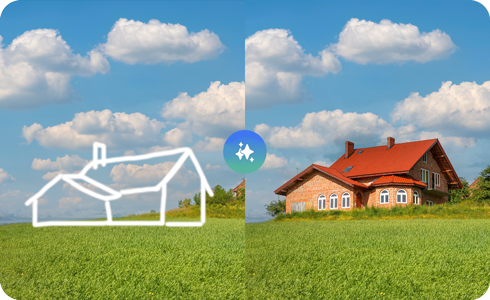
- Sketch to Image: Convert hand-drawn sketches into photorealistic objects that blend seamlessly with your photo.
- Generative Edit: Modify objects in your photo by deleting, moving, or resizing them while maintaining natural background integration.
- Portrait Studio: Transform portrait photos into cartoon-style characters using AI-generated art.
To use Photo Assist, ensure you're signed into your Samsung Account. AI-generated images will display a watermark, and drawing data is processed securely without being stored by Samsung.
2. How to Enable and Access Photo Assist
You can enable Photo Assist directly from the Gallery app or via Settings:
- Open the Gallery app and select a photo.
- Tap the Edit icon (pencil icon) at the bottom of the screen.
- Tap the Photo Assist icon (AI symbol) to activate the feature for the first time.
- Follow the on-screen prompts to enable permissions and agree to terms.
Alternatively, you can toggle Photo Assist in Settings:
- Open Settings on your Samsung Galaxy device.
- Go to Advanced Features > Galaxy AI.
- Enable Photo Assist and any required sub-features like Drawing Assist.
3. How to Use Sketch to Image
Sketch to Image allows you to draw over a photo and generate a photorealistic object that matches the scene:
- Open the Gallery app and select a photo.
- Tap Edit, then select Photo Assist.
- Choose Sketch to Image and draw your desired object using your finger or stylus.
- Tap Generate to let AI create the object. Adjust as needed.
- Note: The Drawing Assist feature must be enabled in Settings > Galaxy AI for Sketch to Image to work properly.
4. How to Use Generative Edit
Generative Edit lets you modify objects in your photo after they've been created:
- After creating an object with Sketch to Image, tap and hold the object.
- Select Delete, Move, or Resize to adjust the object.
- Save your changes once satisfied.
AI automatically adjusts the background to maintain realism.
5. How to Use Portrait Studio
Portrait Studio converts portrait photos into cartoon-style characters:
- Open the Gallery app and select a portrait photo.
- Tap Edit, then choose Photo Assist.
- Select Portrait Studio and apply the style to your photo.
- Preview the result and save if satisfied.
- Note: Portrait Studio is only available on Galaxy Z Flip6 and Z Fold6 devices.
6. Supported Samsung Galaxy Devices
Photo Assist is compatible with most modern Samsung Galaxy devices running One UI 6.1.1 or later, including:
- Galaxy S24, S24+, S24 Ultra
- Galaxy Z Fold6, Z Fold5, Z Fold4
- Galaxy Z Flip6, Z Flip5, Z Flip4
- Galaxy A54, A34, and other recent Galaxy A series models
Feature availability may vary depending on your device model and software version.
7. Privacy and Data Usage
When using Photo Assist, especially Sketch to Image, your drawings are temporarily sent to a server for processing. Samsung ensures that:
- Data is only used to generate the requested image.
- No personal data is stored after processing.
- AI-generated images include a visible watermark.
8. Related Samsung Support Topics
Thank you for your feedback!
Please answer all questions.