How to use Message App on my Galaxy device
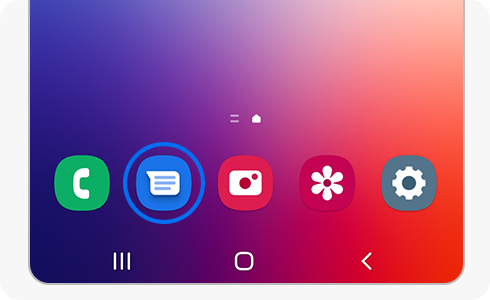
The Samsung Galaxy Message App is a versatile messaging tool that supports SMS, MMS, RCS chats, and multimedia sharing. Whether you're sending a simple text or managing group conversations, this guide covers everything you need to know about using the app effectively on your Samsung Galaxy device.
1. What is the Samsung Galaxy Message App?
The Samsung Galaxy Message App is a built-in messaging application designed for seamless communication. It supports traditional SMS and MMS, as well as advanced RCS (Rich Communication Services) features like high-quality media sharing, read receipts, and typing indicators. The app is compatible with all Samsung Galaxy devices running Android 5.0 (Lollipop) or later.
- The app requires a Wi-Fi connection or a data network to function optimally.
- Note: Android Message may not be available on all mobile tariffs or in certain countries.
2. How to Set Up the Samsung Galaxy Message App
- Ensure your Samsung Galaxy device is running Android 5.0 or later.
- Open the Message App from your home screen or app drawer.
- Follow the on-screen prompts to configure your messaging preferences, such as notifications and themes.
- Enable RCS in the app settings for enhanced messaging features.
3. How to Send Messages and Start Conversations
- Open the Message App.
- Tap the compose icon (usually a pencil or plus sign).
- Enter the recipient's phone number or select a contact from your list.
- Type your message and tap the send icon.
- For scheduled messages, long-press the send icon, choose a date and time, and confirm.
4. How to Manage Messages and Categories
Organize your messages into categories for easier management:
- Starred: Messages marked as important.
- Archived: Messages moved out of your main inbox.
- Spam & locked: Messages flagged as spam or blocked.
- Images, Videos, Places, and Links: Multimedia and location-based messages.
Access these categories by tapping the more options icon (three dots) in the top-right corner of the app.
5. How to Customize the Samsung Galaxy Message App
- Tap the more options icon (three dots) in the app.
- Select 'Settings' to access customization options.
- Choose a theme (Light, Dark, or System default).
- Enable pinch-to-zoom for conversation text.
- Turn on outgoing message sounds.
- Configure Bubbles for notifications (All, Selected only, or None).
- Set your preferred country and automatic preview options.
6. How to Set Up Notifications and Spam Protection
- Go to 'Settings' in the Message App.
- Adjust notification preferences for message alerts.
- Enable spam protection to block harmful messages.
- Check blocked messages under 'Spam & blocked' in the app.
7. How to Sync Messages Across Devices
- Ensure both devices are connected to the same account.
- Open the Message App on the new device.
- Follow the prompts to pair and sync messages.
8. Troubleshooting Common Issues
If you encounter issues with the Message App, try the following:
- Check your internet connection or switch to Wi-Fi.
- Update the app to the latest version.
- Enable RCS in the app settings.
- Visit 'Help & feedback' in the app for additional resources.
9. Supported Samsung Galaxy Devices
The Message App is compatible with the following Samsung Galaxy devices:
Galaxy S24, Galaxy S25, Galaxy S26, Galaxy Z Fold, Galaxy Z Flip, and Galaxy A series.
Related Samsung Support Topics
Thank you for your feedback!
Please answer all questions.