How to Customize the Navigation Bar on a Galaxy Phone
How to Customize the Navigation Bar on Samsung Galaxy Devices
You can fully customize the navigation bar on your Samsung Galaxy device to match your preferred navigation style. Whether you want to rearrange the buttons, switch to gesture navigation, or adjust the bar's position on foldable screens, this guide covers all the steps.
1. What Is the Navigation Bar on Samsung Galaxy Devices?
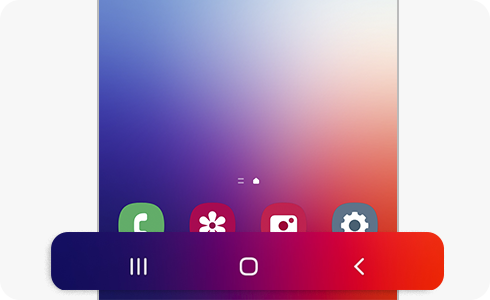
The navigation bar is the interface at the bottom of your Samsung Galaxy screen that includes the Recents, Home, and Back buttons. It provides quick access to essential navigation functions and can be customized for better usability.
- Recents button: Opens recently used apps.
- Home button: Returns you to the home screen.
- Back button: Takes you to the previous screen.
Note: The navigation bar may temporarily disappear in certain apps, such as games or video players. Swiping up from the bottom of the screen will bring it back.
2. How to Rearrange Navigation Bar Buttons
You can customize the order of the navigation bar buttons to suit your preferences. This feature is available on most Samsung Galaxy devices, including the Galaxy S24, Galaxy Z Fold, and Galaxy A series.
- Open the Settings app on your device.
- Tap on Display.
- Select Navigation bar.
- Ensure that Buttons is selected.
- Tap on Button arrangement and choose your preferred layout.
Note: Changing the button arrangement will also affect the swipe gestures' starting points if you switch to gesture navigation later.
3. How to Enable Gesture Navigation
Gesture navigation allows you to replace the traditional navigation bar with swipe-based controls, offering a cleaner and more immersive experience.
- Open the Settings app.
- Tap on Display.
- Select Navigation bar.
- Choose Swipe gestures.
- Enable Gesture hint to see visual guides for swiping.
- Toggle on Show button to hide the keyboard to display the navigation buttons when the keyboard is open.
- Enable Prevent accidental gestures with the S Pen if you use an S Pen.
- Tap More options to customize swipe directions.
Gesture functions include:
- Far left: Opens recent apps.
- Middle: Returns to the home screen.
- Far right: Navigates back to the previous screen.
To hide the gesture lines completely, disable the Gesture hint toggle.
4. How to Adjust Navigation Bar Position on Galaxy Z Fold Devices
On Samsung Galaxy Z Fold devices, you can position the navigation bar on the left, right, or center of the main screen for better usability.
- Open the Settings app.
- Tap on Display.
- Select Navigation bar.
- Tap on Button position.
- Choose your preferred position (left, right, or center).
Note:
- If the navigation bar is enabled, you can only move it to the left or right.
- If the navigation bar is disabled, it will automatically appear in the center.
5. Additional Things to Check
If you encounter issues with the navigation bar, consider the following troubleshooting steps:
- Ensure your device is running the latest software version.
- Restart your device to refresh the system settings.
- Check for third-party apps that might interfere with navigation settings.
Supported Samsung Galaxy Devices
This feature is available on most Samsung Galaxy devices, including the Galaxy S24, Galaxy S25, Galaxy S26, Galaxy Z Fold, Galaxy Z Flip, and Galaxy A series.
Related Samsung Support Topics
Thank you for your feedback!
Please answer all questions.