How to Use the Touchscreen on a Galaxy Tab S9
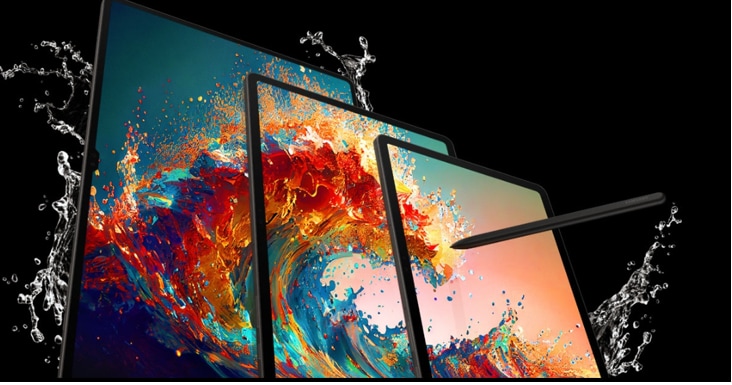
How to Use the Touch Screen on Your Samsung Galaxy Tab S9
The Samsung Galaxy Tab S9 features a responsive touch screen that supports various gestures like tapping, swiping, pinching, and double-tapping. To ensure smooth operation, follow these guidelines for touch screen interactions, navigation bar customization, and preventing damage.
1. How to Perform Basic Touch Screen Gestures
The Galaxy Tab S9 supports several touch gestures for efficient navigation and interaction. Here's how to use them:
- Tapping: Lightly press the screen to select items, open apps, or interact with on-screen elements.
- Double-Tapping: Quickly tap twice to zoom in or out in supported apps like the web browser or gallery.
- Holding: Press and hold an item to open options like moving, copying, or deleting files.
- Dragging: Press and hold an item, then slide your finger to move it across the screen.
- Swiping: Slide your finger horizontally or vertically to scroll through content or switch between screens.
- Pinching: Place two fingers on the screen and pinch them together to zoom out or spread them apart to zoom in.
2. How to Customize the Navigation Bar
The navigation bar at the bottom of the screen provides quick access to Recents, Home, and Back buttons. You can customize its appearance or hide it entirely.
- Open the Settings app on your Galaxy Tab S9.
- Tap Display.
- Select Navigation bar.
- Choose Swipe gestures under Navigation type to hide the navigation bar and use swipe gestures instead.
- Tap More options to adjust additional settings, such as gesture hints.
- To hide gesture hints, toggle off the Gesture hint switch.
- Note: The device may not recognize touch inputs near the edges of the screen, as they fall outside the touch input area.
3. How to Prevent Touch Screen Damage
To maintain optimal touch screen performance and avoid damage, follow these precautions:
- Avoid using sharp objects like pens or keys to interact with the screen.
- Apply gentle pressure when tapping or swiping to prevent wear and tear.
- Keep the screen clean and free from dust or debris that may interfere with touch sensitivity.
- Use a screen protector to shield against scratches and minor impacts.
- Common issues like electrostatic discharges or screen burn-in can affect touch screen functionality. Ensure proper handling and usage to minimize risks.
4. Supported Samsung Galaxy Devices
These touch screen controls and navigation bar settings apply to the following Samsung Galaxy devices:
- Galaxy Tab S9 series
- Galaxy Tab S8 series
- Galaxy Tab A series
- Galaxy Z Fold and Galaxy Z Flip series (for touch gestures)
5. Related Samsung Support Topics
Thank you for your feedback!
Please answer all questions.