How to Control the Galaxy Fit3 Screen
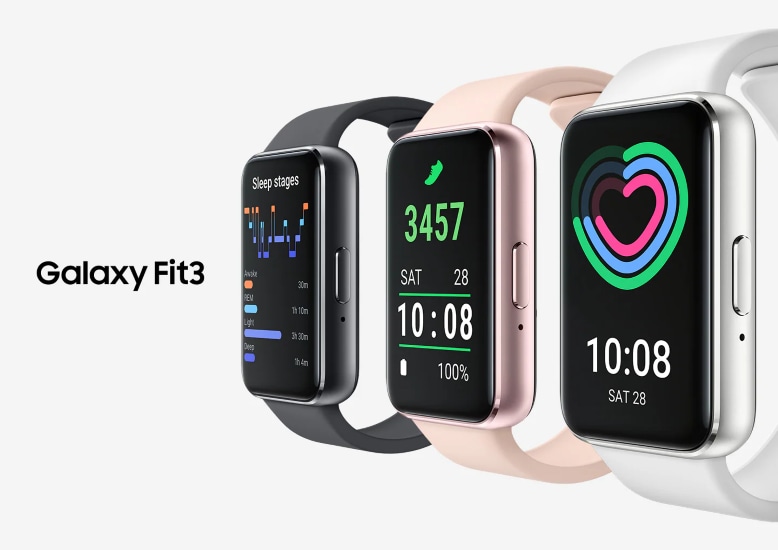
1. How do I control the Galaxy Fit3 screen?
The Samsung Galaxy Fit3 features an intuitive touchscreen interface that responds to various gestures. Below are the primary touch controls:
- Tapping: Lightly tap the screen to interact with icons, notifications, or tiles.
- Touching and Holding: Press and hold the screen for approximately 2 seconds to access additional options or menus.
- Swiping: Swipe up, down, left, or right to navigate between screens, open the notification panel, or access tiles.
- Note: Touch inputs near the screen edges may not be recognized, as they fall outside the touch-sensitive area.
- Note: The touchscreen is disabled during Water Lock Mode to prevent accidental touches in wet conditions.
2. How do I navigate the Home screen on my Galaxy Fit3?
The Home screen serves as the central hub for accessing apps, notifications, and tiles. Follow these steps to navigate:
- Notification Panel: Swipe down from the top to view notifications.
- Watch Screen: The default screen displays the time and date.
- Tiles: Swipe left or right to access customizable tiles for quick access to features like heart rate monitoring or step tracking.
- Add Tiles: Tap the "Add Tiles" option to customize your Home screen layout.
- Note: The arrangement and availability of panels and tiles may vary depending on your software version.
3. How do I manage tiles on my Galaxy Fit3?
Tiles provide quick access to frequently used features. Here's how to manage them:
- Adding a Tile: Tap "Add Tiles" and select the desired tile from the list.
- Editing Tiles: Touch and hold a tile to enter edit mode, where you can rearrange, remove, or configure the tile.
- Moving a Tile: In edit mode, tap the left or right arrow and drag the tile to the desired position.
- Removing a Tile: Tap the minus icon (-) on the tile to delete it.
- Note: Some tiles cannot be edited or removed.
4. How do I turn the screen on and off on my Galaxy Fit3?
Use these methods to activate or deactivate the screen:
- Using the Button: Press the Home button to turn the screen on.
- Raising Your Wrist: Lift your wrist to wake the screen. If this doesn't work, go to Settings > Display > Screen Wake-Up and enable "Raise Wrist to Wake."
- Tapping the Screen: Tap the screen to wake it. If this fails, enable "Touch Screen to Wake" in Settings > Display > Screen Wake-Up.
- Turning the Screen Off: Cover the screen with your palm or let it idle for a set period to auto-lock.
5. How do I switch between the Home screen and Apps screen?
Follow these steps to navigate between screens:
- From Home Screen to Apps Screen: Swipe upward to access the Apps screen.
- From Apps Screen to Home Screen: Swipe downward or press the Home button.
- Returning to Previous Screen: Swipe right to go back to the previous screen.
6. How do I set up a screen lock on my Galaxy Fit3?
Enable a screen lock to secure your device:
- Go to the Apps screen and tap Settings > Security and Privacy > Lock Type.
- Select a lock method (e.g., PIN).
- Enter your chosen PIN to confirm.
- Note: Once unlocked while wearing the Fit, the screen remains unlocked until removed.
7. How do I change the watch face on my Galaxy Fit3?
Customize your watch face for a personalized look:
- Using the Galaxy Wearable App: Open the app on your phone, tap Watch Faces, and select a design.
- Directly on the Fit: Touch and hold the Watch screen, then swipe left or right to choose a watch face.
- Note: Some watch faces, like Photos, allow customization.
8. How do I enable Always On Display on my Galaxy Fit3?
Activate Always On Display to view time and date even when the screen is off:
- Open the Quick Panel by dragging down from the top edge of the screen.
- Tap the Always On Display icon.
- Alternatively, go to Settings > Display and toggle on Always On Display.
- Note: This feature may drain battery faster.
Supported Samsung Galaxy Devices
The instructions above apply to the Samsung Galaxy Fit3. Compatibility may vary slightly across other Galaxy wearables, including the Galaxy Fit2 and Galaxy Watch series.
Related Samsung Support Topics
Thank you for your feedback!
Please answer all questions.