Galaxy AI languages & usage guide
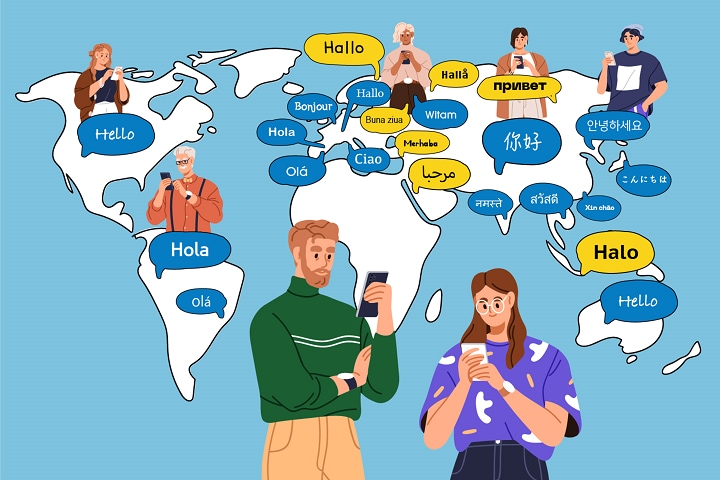
How to Use Galaxy AI Features on Samsung Devices
Galaxy AI offers a suite of intelligent features designed to enhance communication, productivity, and creativity across Samsung devices. From real-time translation to AI-powered photo editing, these tools are available on select Galaxy models and can be accessed through the device settings or apps.
1. What Are Galaxy AI Features?
Galaxy AI is a collection of intelligent tools integrated into Samsung devices, enabling users to perform tasks like real-time translation, message refinement, and photo editing. These features are designed to improve daily interactions and streamline workflows.
- Real-time translation for calls and conversations
- AI-powered photo editing and enhancement
- Message translation and tone adjustment
- Voice transcription and note summarization
2. Supported Samsung Galaxy Devices
Galaxy AI features are available on the following devices running One UI 6.1 or later:
- Galaxy S23 series
- Galaxy S22 series
- Galaxy Z Flip5 and Z Fold5
- Galaxy Z Flip4 and Z Fold4
- Tab S9 series and Tab S8 series
Note: Tab S9 FE does not support AI features.
3. How to Download Language Packs for Galaxy AI
To use features like Live Translate, you may need to download language packs. Follow these steps:
- Open Settings on your device.
- Select General management.
- Choose Language packs.
- Download the desired language packs for use in Live Translate.
4. Using Live Translate for Real-Time Call Translation
Live Translate allows you to translate phone calls in real time. Here's how to use it:
- Open the Phone app on your device.
- Tap Settings and select Live Translate.
- Choose the desired language packs.
- Initiate a call and select Call Assist > Live Translate.
- Manually select the languages for translation.
- As you converse, the device will translate the conversation in real time.
5. Using Chat Assist for Message Refinement and Translation
Chat Assist helps you refine the tone of your messages and translate them in real time. Follow these steps:
- Write a message in your chosen messaging app.
- Tap the stars icon to access Chat Assist.
- Select "writing style" and choose a preferred tone.
- To translate a message, tap the language icon and set the input and output languages.
6. Using Interpreter for Face-to-Face Conversations
The Interpreter feature allows you to translate face-to-face conversations without Wi-Fi or data. Here's how to use it:
- Swipe down to access the Quick Panel and select Interpreter.
- Set two languages in the drop-down menus.
- Select the split-screen button to change the orientation.
- Tap the speaker button to choose between text-only translations or spoken translations.
- Press the microphone icon, speak, and let the device translate automatically.
7. Using Edit Suggestion and Generative Edit for Photo Enhancement
Galaxy AI offers tools like Edit Suggestion and Generative Edit to enhance your photos. Here's how to use them:
- Select a photo from the Gallery to edit.
- Tap the "I" circular icon to access Edit Suggestion.
- Apply suggested edits or use Generative Edit to remove objects or fill in backgrounds.
- Save the edited image as a copy or replace the original.
8. Additional Things to Check
Ensure your device meets the following requirements for optimal Galaxy AI performance:
- Your device is running One UI 6.1 or later.
- You have downloaded the necessary language packs.
- Your device is connected to a stable network for updates and downloads.
Related Samsung Support Topics
Thank you for your feedback!
Please answer all questions.