How Do I Use Modes and Routines on My Galaxy Phone?
How to Set Up and Use Bixby Routines on Samsung Galaxy Phones
Bixby Routines on Samsung Galaxy phones automates repetitive tasks based on your daily habits, such as turning on Wi-Fi when arriving at work or activating blue light filters before bedtime. This guide explains how to access, customize, and create routines for seamless automation.
1. What Are Bixby Routines?
Bixby Routines is a smart automation feature that learns your daily patterns and suggests or creates routines to simplify your phone usage. For example, it can automatically mute notifications during work hours or adjust screen brightness when you're driving.
- Automate tasks like turning on Wi-Fi, adjusting screen settings, or launching apps based on location, time, or activity.
- Customize routines to fit your lifestyle, such as "At Work," "Driving," or "Sleeping."
- Create personalized routines using triggers and actions tailored to your preferences.
2. How to Access Bixby Routines
You can access Bixby Routines through Settings or the Quick Panel for convenience.
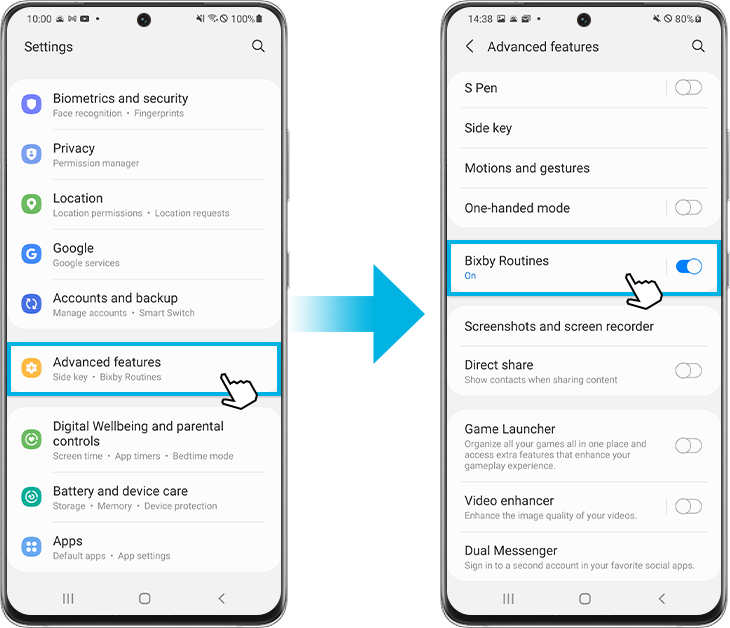
3. Accessing Bixby Routines via Settings
- Open the Settings app on your Samsung Galaxy phone.
- Scroll down and select Advanced features.
- Tap on Bixby Routines to open the feature.
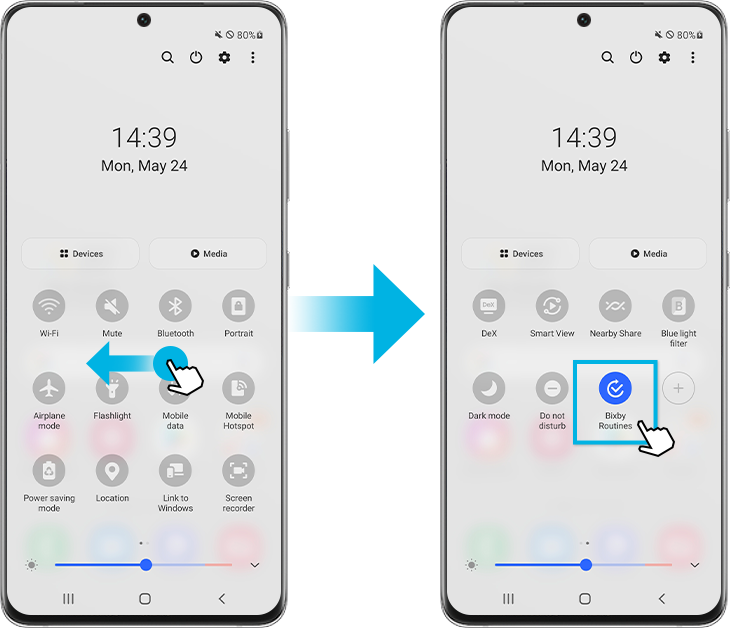
4. Accessing Bixby Routines via Quick Panel
- Swipe down from the top of your screen to open the Quick Panel.
- Swipe left to view additional tiles.
- Tap and hold the Bixby Routines icon to open the feature.
To make Bixby Routines more accessible, you can add a shortcut to your home screen. While in Bixby Routines, tap More options (three vertical dots) and enable Add Bixby Routines to Apps screen.
If the Bixby Routines icon is missing from the Quick Panel, tap the + icon to add it manually.
5. Supported Samsung Galaxy Devices
Bixby Routines is available on most Samsung Galaxy smartphones, including the Galaxy S24, Galaxy S25, Galaxy S26, Galaxy Z Fold, Galaxy Z Flip, and Galaxy A series devices. Ensure your device is running the latest software version for optimal functionality.
6. How to Set Up Recommended Routines
Bixby Routines offers pre-designed routines that you can activate and customize to fit your needs.
- Open Bixby Routines and tap the Discover tab.
- Browse and tap a routine, such as "At Work" or "Sleeping."
- Customize the routine by selecting widgets, apps, and conditions (e.g., location or time).
- Tap Edit to adjust settings according to your preferences.
- Tap Next, then assign a name, icon, and color for the routine.
- Tap Done to save and activate the routine.
7. How to Create a Custom Routine
You can create a custom routine using triggers and actions tailored to your specific needs.
- Open Bixby Routines and tap the Add routine tab.
- Tap the picture under If and select a trigger (e.g., location, time, or app usage).
- Tap the picture under Then and choose an action (e.g., turning on Wi-Fi, launching an app, or adjusting brightness).
- Tap Next, then assign a name, icon, and color for the routine.
- Tap Done to save and activate the routine.
Note: By default, Bixby Routines reverts settings to their original state once the trigger ends.
8. How to Disable a Saved Routine
To temporarily disable a routine, follow these steps:
- Open Bixby Routines and tap the My routines tab.
- Find and tap the routine you want to disable.
- Tap More options (three vertical dots).
- Select Disable this routine and confirm.
You can re-enable or edit the routine anytime from the My routines tab.
9. Additional Things to Check
Ensure your device and apps are updated to the latest version for optimal Bixby Routines performance.
- Check for software updates in Settings > Software update.
- Verify that location services are enabled for location-based routines.
- Ensure Wi-Fi or mobile data is active for routines requiring internet connectivity.
10. Related Samsung Support Topics

Thank you for your feedback!
Please answer all questions.